Showing posts with label Linux. Show all posts

How to Multiboot Linux?

13 October 2010

Here's a short guide on how to boot multiple Linux distributions in one computer.


Multibooting isn't that hard actually. All you need to do is to prepare partitions for your linux distro to install itself in. Doing so gives you freedom to set up how your linux partitions are set up, such as to have all distros share ONE swap partition and so on.

However, if you actually don't know how to set up, or faced problems while partitioning, you can actually let your distro use the current available free space. This will guarantee the installation, since the distro gets to use its own method to install.


How to Do It?
1. Set up another primary partition.
If you don't know, you can only have a MAXIMUM of FOUR primary partitions. So we'll create one primary/extended partitions to store all Linux in it which they will become logical partitions inside this primary one. Make sure you set a good size to fit all your distros that you are going to install.


If you're using Windows to do it, simply use Disk Management and create a New Primary Partition. It will be in NTFS format, but it's okay for now. You should use a Linux partitioner from there onwards since we don't want it to be NTFS.


Windows Disk Management. Notice E: and F:, they're Primary Partitions. You can add in more using a Linux Partitioner like GParted later.


If you're using a partitioner in Linux such as GParted, it's the same, just create an extended partition and you can create partitions within there (it will be like a drop-down menu) after that.


/dev/hda3 is the Primary/Extended partition here, with more partitions inside it.


2. Create partitions.
Now, create partitions under that extended partition. It's simple, just make sure you make it into the ext3 or ext4 format. Ext4 is mostly used nowadays, so just use ext4. For the swap partition, use the swap format.


Do remember, Linux only needs two partitions to install. One is the root partition and one is the swap partition. If you want to share swap partitions, just create ONE. Upon installing your Linux distro, you can choose the partitions you want to install in.


ALTERNATIVE METHOD - USE FREE SPACE
If you're afraid that you'll fail, you can always use the free space method. After creating your extended partition, just create one empty partition inside it and make sure its size doesn't use all the space inside that extended partition. Leave some free space inside the extended partition for your Linux distro to install in. That free space will be used when you install your Linux using the "USE FREE SPACE" option.


Do the same for the other distros by reducing the size of the empty partition so that there is free space again. Repeat!


3. Installation
Once you have installed your first distro, do not let other distros install their bootloader as it will cause problems. Let's say you installed Ubuntu first. Then, you want to install Sabayon, Red Hat or any other distro. Do not let the others install their bootloader or GRUB (you have to find an option when installing to make sure it doesn't install it).


Untick the Install Bootloader checkbox!


Closure
Once you installed all your distros without overwriting the first GRUB you installed, you should be fine. The GRUB will detect all the new distros you've put in without any issues. If it doesn't, update GRUB and it will be fine.


Love,
Nicholas.

GRUB Rescue Solutions

09 September 2010

Yup, about Linux. GRUB fails? Here are some tips.


Some time in your happy days of using your epic Linux distro, you would face a simple and clueless problem. GRUB fails to load and gives you this grub-rescue which you don't have any idea what to do with it!

Before you proceed, you might wanna try Super Grub Disk to fix your GRUB.
http://www.supergrubdisk.org


Solutions for GRUB Failures

Situation: Unknown Filesystem / Corrupted or Deleted GRUB
When Does it Happen: Usually during repartitioning.
Solution:
1. Boot into your LiveCD.
2. Find out where you installed your distro by typing "sudo fdisk -l"
3. Mount it by typing "sudo mount -t ext4 /dev/sda6 /mnt (please change /dev/sda6 to the partition path of your installed Linux)
4. Install GRUB by typing "sudo grub-install --root-directory=/mnt/ /dev/sda"


Situation: Uninstalled Linux / No GRUB
When Does It Happen: When you delete the Linux partition.
Solution:
1. This is for Windows 7, to recover Windows' bootloader.
2. Boot from Window 7's System Repair Disk.
3. Open the Command Prompt.
4. Type in "Bootrec.exe /FixMbr" to overwrite the boot record.


Love,
Nicholas.

Linux Blank Screen Problem

04 September 2010

Problems with Sony Vaio or other PCs with Linux concerning blank screen or no display.


Some of you might have experienced that when you boot into your Linux CD/DVD, nothing shows up. Your computer is running, but nothing is on display. However, some people experience it when they boot into their OS in the hard disk, and get a blank screen instead of actually getting it during a boot from CD.

I'm going to talk about two reasons for blank display. First one will be for Sony Vaio users and the second one will be for general users. But first, you need to know how to boot into your distro, 'cuz you probably can't do it as it shows a blank screen.


Booting
If a normal boot doesn't work and shows a blank screen, you need to boot into either Safe Mode, Failsafe Mode, Compatibility Mode or something of the sort when the GRUB screen comes up. If there is no such option, you need to add "nomodeset" to the GRUB command before booting. To do so, just press the "C" key on your keyboard while having your OS selected and type in "nomodeset" at the end. This should be enough to boot into your OS with minimal display.


Added "nomodeset" into GRUB command.


Sony Vaio Blank Display
This problem occurs in Sony Vaio with NVIDIA graphic cards (such as G210M, G310 and so on). It happens because your operating system's drivers could not detect the EDID data. The EDID file is crucial as it describes about your LCD screen. Failure to detect this file will result in a blank display.


Vaio fail? Nah, it's a very good laptop. It just doesn't work well with Linux.


To overcome this problem, follow the steps below.

1. You need to extract the EDID file while you're at Windows. Go to Windows and install the Phoenix EDID Designer.


2. Place the extracted EDID file in "/etc/X11" directory. Rename it to anything you like, for example, "sonyedid.bin".


3. Install Nvidia drivers from restricted drivers list. This can be achieved by going to the Hardware Manager or just by waiting for a pop-up or indication at your taskbar about restricted drivers. You will need to connect to the Internet as it will automatically download the drivers for you.


Activate Restricted Drivers so it will begin downloading and installing it.


4. Edit your xorg.conf file located at "/etc/X11/" and add the following into the Device section of the file. The extra stuff that you need to add is highlighted in this example.


Example:
Section "Device"
Identifier "Device0"
Driver "nvidia"
VendorName "NVIDIA Corporation"
Option "ConnectedMonitor" "DFP-0"
Option "CustomEDID" "DFP-0:/etc/X11/sonyedid.bin"

EndSection


(Notice the second last line, /etc/X11/sonyedid.bin, which is the path of your extracted EDID file. If you renamed your EDID file differently, please change accordingly.)


Typical xorg.conf file with no EDID options.


5. IF YOU CANNOT FIND YOUR XORG.CONF FILE DO NOT PANIC! The reason why you cannot find the file under "/etc/X11" is because you are probably using the newer kernel and drivers where the xorg file is located in somewhere else which I don't remember. However, if you do create a xorg file and place it in "/etc/X11", that file will be read instead. Since it works like that, all you need to do now is to create a xorg.conf file, since you don't have one. But how? Follow these steps...


a) First, you need to kill the X server. Uh...different distros have different ways to kill the X server, so I'm just gonna list some. Killing the X server basically means no more GUI, only CLI...all text.

You can try pressing Ctrl+Alt+Backspace. (BackTrack)
You can try going to the terminal and type init 3, then press Ctrl+Alt+Backspace twice. (OpenSUSE)
You can try going to the terminal and type sudo service gdm stop. (Ubuntu)


If it doesn't work for your distro, please just Google it by typing "How to kill X server in YOUR DISTRO NAME HERE"


b) Now, since you already installed your restricted Nvidia drivers, you can run the following command.

sudo nvidia-xconfig


If it doesn't work, your user might not have rights to use the sudo command. So, type in "su" and type in your root password (if you don't know, just type in your user password) and then type "nvidia-xconfig".

It will generate a xorg.conf file at /etc/X11.


c) Now edit the file and put in those highlighted lines as seen in step 4 and reboot.


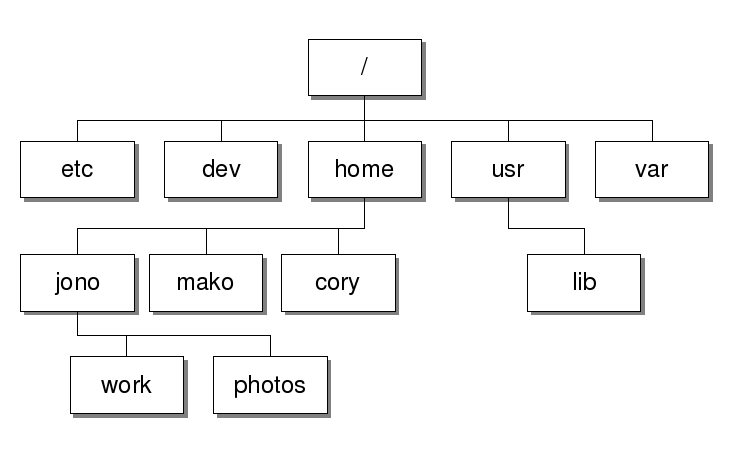
Linux's file system is different from Windows. Windows starts from C:\ and so on, while Linux starts from Root, which is only a slash "/".


General Blank Screen Problem
Some graphic cards just don't work well with Linux's display drivers. It is most often experienced by Nvidia cards. ATI cards also do experience this problem though.

Most people have the blank screen because their drivers are not installed. Just follow the Booting step at the top of this blog post, so you can boot into your OS and install the restricted drivers as mentioned in Sony Vaio Blank Display step 3.


If it still doesn't work, you might have to boot your PC with the nomodeset option on. You can do this by adding the nomodeset line into the GRUB file, or just type it in before booting. Refer to the Booting section of this blog post.


That's all for the blank screen problem. The next post will be about configuring Linux and how to use it. I will explain on the different features in Linux and things you might want to do, as well as how to install software and the sort in the near future.


Love,
Nicholas.

How to Get Started with Linux?

03 September 2010

How do I get started with Linux?


Alright, the previous post talked about what is Linux and several good features it brings. Now, we will talk about how to get started with it, such as downloading, installation and preparing your PC for use with Linux!


Notes and FAQs Beforehand:
1.
How Much Space Does my Distro Need?
Depends on your distro. Typical linux distros, with lots of software, you should leave about 40GB for it, so you can contain anything you want, which is more than enough. Puppy Linux only needs about 100-300MB. Just refer to your distro's forums.

2. How Much Swap Space Do I Need to Leave?
A few GB, 2-5 would be already good/more than enough.


Arch Linux, not for beginners and lets you pretty much build Linux from the ground up.


Step 1: Pick Your Distro
Since there is a whole big list of Linux distros, you'll have to pick one that you really like. You can pick a few too, since you can install all of them into your PC at once as well. For those of you who are not aware, a PC can contain as many OS-es as it can, as long as you have the space and a bootloader.


Recommended Distros (all of the following are free)
Desktop Users - Sabayon, Mint, Ubuntu, Mandriva, Arch
Laptop Users - OpenSUSE, Puppy, BackTrack
Servers - CentOS, SimplyMEPIS


The MOST user-friendly and suitable-for-beginners distro to me is Linux Mint. You can also get Ubuntu because Mint is based on that...and these two are by far the most user-friendly ones. You can look into other distros like Fedora, Slackware, Zenwalk and so on as they're quite good as well.


Linux Mint's Desktop, just to show so you know how it looks like. It's GREEEEN.


Step 2: Download!
Download the LiveCD or LiveDVD if you want to install it into your hard disk. Be aware that you can also install OS-es on removable USB flash drives and so on, so it is all your choice. I will be teaching how to install using LiveCD/DVD, so for the flash drive, you can refer to the site where you got your distro as they'll have a guide there too.

Once you've downloaded your CD/DVD, burn it.


Step 3: Install!
Now, you can either dual-boot, which means to install the distro while still remaining the current OS, or to completely delete the current OS and replace with the distro you're installing.

Firstly, insert your CD/DVD and boot into the CD/DVD. If you do not know how to boot into CD/DVD, please read here.

After booting, you will probably be directed and have instructions on the installation. If the desktop shows and nothing comes up to direct you, they probably have a "Install" icon on the desktop for you to click and install.


Ubuntu. The option selected is to replace your whole OS. The 2nd and 3rd options are for dual-booting.


Then, follow the instructions during the installation. Eventually, you'll end up at the partitioning part. If you want to completely replace your OS, tick the option where it says "Erase all data and install" or something of the sort.


IF YOU WANT TO DUAL-BOOT, BE AWARE OF THIS:
Linux requires two partitions and they are of different format than Windows partitions. One is called the swap partition (the format is: swap) and is the space your computer uses when your RAM is full. Another one is called the root partition (the format is: ext4) which is the main space for all files. Some distros include another partition called the home or user partition (ext4) which is basically a place for you to store YOUR folders, but is not necessary as it can be stored in root as well.

So if you want to dual-boot, tick the option to create and resize the partitions according to your liking. If you're messing around with the number of partitions, just make sure you have the root and swap partitions and that's it.


OpenSUSE. Notice there are 3 partitions. Swap, Root and Home.


Step 4: Reboot
Once you're done installing, reboot and remove your CD/DVD to see your brand new OS. If you dual-boot, you will notice that after you reboot, you should see GRUB (Grand Unified Bootloader) which is installed together with the distro. GRUB allows you to select which OS to use.


Typical look of the GRUB.


IF YOUR LINUX BOOTS WITH A BLANK SCREEN, PLEASE WAIT FOR ME TO POST SOLUTIONS ON THE NEXT POST.

In the next part, I'll talk about problems in booting your Linux distro. I will also post a solution for a major problem experienced by Sony Vaio users with Linux distros.


Love,
Nicholas.

What is Linux?

02 September 2010

We've always known Windows...but what's Linux and how does it differ?


Linux's official mascot/logo. They call this penguin, Tux.


Alright, starting from today, most posts will be based on Linux for a while. Maybe about 4-5 posts will be about Linux, and I would like to introduce this wonderful operating system/kernel to everyone as it is actually, a very good competitor along with Mac and Windows.


What is Linux?
People now are so used to Windows, I don't think they even know what other OS-es are there available in this world.

A kernel is the central component of an OS. In Windows, they use the NT kernel. Linux is a kernel. There are so many distributions of Linux you see out there, such as the famous Red Hat, Ubuntu and so on. They are using the Linux kernel, and to generalize it you can call Linux an operating system.

Linux is open-source, meaning that it is developed and supported by a bunch of people who have too much of free time and is giving it out for free.


Ubuntu Linux's official logo.


What are Linux DISTRIBUTIONS?
There are many Linux distributions or distros, which are OS-es built on the Linux kernel with many different software and features included. Each distro can work differently and support more on special purposes, such as BackTrack for networking/penetration testing purposes.

By default, all programs are installed for you to use. Web browsers, instant messaging clients, e-mail clients, image editing tools, music players and many more are already there. You don't need to worry about a single thing and it is very easy to use.


Linux is ugly? Wrong. This is the gorgeous OpenSUSE 11.3 KDE Desktop.


Why Linux is good?
1. With the latest distributions, it is very user-friendly, and sometimes even more user-friendly than Windows.

2. You can install software by just ticking the software you want from a list of open-source software, and it will download and install the packages for you without you doing anything.

3. It is completely free. No piracy, no illegal stuff, no worries. Well, except for some distros like Red Hat which commercialize their distro. The rest is free.

4. Some distros have a higher CPU performance compared to Windows.

5. Very good security. You can basically go online without a firewall.

6. Full access and customization. You can do anything in Linux, and even create your own distro without violating any laws. Very flexible.


Linux is not user-friendly? Wrong. This is Ubuntu Netbook's GNOME Desktop.


The problem about "hardware drivers not supported" is actually no longer there, because the latest distros have most drivers, and if they don't, you can download them directly from the repository. You just have to get used to the different system, and Linux is actually very very good. Don't just stick to Windows! It's boring!


Mandriva, also another Linux distro. Beautiful log-in screen.


In the next post, I'll show you how to get started with Linux, and what distros are recommended.


Love,
Nicholas.