Showing posts with label Gaming. Show all posts

How to Setup RUST Server with Plugins?

15 May 2014

A short guide on how to setup a RUST server, with mods and plugins to enhance the game.

This guide shows you how to start a RUST server for other players to join, as well as to show you how to install plugins. A normal RUST server without any mods or plugins is difficult to play because of its early development stage; for example, there will be no welcome message for new players and killing somebody does not display anything. Adding plugins helps make the game better such as by announcing server messages, protect and reserve in-game names, spawning NPCs, allowing admins to manage and destroy buildings easily, change most of the gameplay and so on!


Note: This guide is for setting up the SERVER, not for playing the game as a CLIENT. To see how to install and play the game, refer to this guide.


Steps

1. Get RUST Client and Server
Currently, most people are playing on version v25, which you can get here.


2. Install RUST server and start the server once.
Run the RUST Server Installer and install the server (if you installed RUST Client, do not overwrite the client files, make sure your server is installed in a separate folder). Once that is done, go to the folder where you installed it and run "Run Server.bat" to start the server, which brings up a console. Type in "config.save" in the console, then close it. This creates initial server files needed in future. If you do not wish to add mods or plugins to your server, you can stop here. Any commands to set the server name and rcon password can be configured in /serverdata/cfg/server.cfg. A list of server commands can be seen here. As a minimum, the server.cfg should contain something like this:

rcon.password mypassword
server.hostname "My Server"
server.maxplayers 24


3. Download and install Magma.
There are other popular mods such as Oxide, but Magma is an excellent framework which allows users to create plugins using JavaScript, which is easy as pie if you have any knowledge on programming, giving you a great deal of control and modification for your plugins. It is important to note that newer versions of Magma do not support the current v25 RUST, so I provided a download link for the correct Magma version here. At the top-left corner of Google Drive, click File > Download. Then, extract its contents to where you installed your RUST server.


4. Configure Magma.
Go to /save/Magma/Rust++/Rust++.cfg and configure important settings such as sleepers. If sleepers = true, then the server spawns a sleeping body whenever a player disconnects. These bodies can still be killed, so it forces players to find a safe place to disconnect. Other settings such as message of the day and notices can be configured here.


5. Make yourself the master admin of the server.
If you're going to play in your own server, you should make yourself the master admin. There are two ways you can try, or you can just do both. The first method is to join your server, bring up the console with F1 and type "rcon.login [password]", replacing [password] with your rcon password set in server.cfg as mentioned in Step 2. Then, type "/setmasteradmin" in chat (NOT CONSOLE).

The second method is the best method, which is to go to /save/Magma/Rust++ folder and edit the admins.xml. It should contain this code, but make sure you replace DisplayName with your nickname and UserID with your player ID number (this can be seen in the server console when you join the server as a client):

<?xml version="1.0" encoding="utf-8"?>
<ArrayOfAdministrator xmlns:xsi="http://www.w3.org/2001/XMLSchema-instance" xmlns:xsd="http://www.w3.org/2001/XMLSchema">
<Administrator>
<DisplayName>Lemoney</DisplayName>
<UserID>76561198120464074</UserID>
<Flags>
<string>CanKick</string>
<string>CanBan</string>
<string>CanUnban</string>
<string>CanTeleport</string>
<string>CanLoadout</string>
<string>CanAnnounce</string>
<string>CanSpawnItem</string>
<string>CanGiveItem</string>
<string>CanReload</string>
<string>CanSaveAll</string>
<string>CanAddAdmin</string>
<string>CanDeleteAdmin</string>
<string>CanGetFlags</string>
<string>CanInstaKO</string>
<string>CanAddFlags</string>
<string>CanUnflag</string>
<string>CanWhiteList</string>
<string>CanKill</string>
<string>CanMute</string>
<string>CanUnmute</string>
<string>CanGodMode</string>
<string>RCON</string>
</Flags>
</Administrator>
</ArrayOfAdministrator>


To make other players as admin, you can just use the "/addadmin [playername]" chat command, but if you want to manage your admins better, you should edit the admins.xml file manually. You can add new admins by copy-and-pasting the whole Administrator element. See the number of things the admin can do under the Flags list, such as CanGodMode? This means that this admin can use the "/god" chat command to make himself invulnerable. So, when copying this admin code for other admins in your server, you may want to remove some of these flags so that they do not have full access.


6. Adding Plugins
Adding plugins is very simple in Magma. To install plugins, simply extract the plugin folder to /save/Magma. You can find plugins for Magma in their forums here, but you may need to register for an account. For your convenience, I have compiled a bunch of useful plugins that should be used on most servers. Some of the plugins have been modified by me to prevent same names and have some funny death messages, so this is a little extra that could not be found in the forums. Extract the plugins to /save/Magma.

USEFUL WORKING PLUGINS FOR MAGMA v1.1.3


Common Questions

Why can't people can't join my server?
Make sure they are using RUST v25. Also, make sure your firewall allows the connection between the server and clients, make sure the ports are forwarded.

How do I detect hackers?
There is no real way to detect hackers, but you can reduce it. If you used the plugins pack that I provided here, it should include a HackAutoBan plugin which will automatically kick anyone suspected of hacking (it checks for players killing people farther than the weapon's effective range). There is also a Vanish plugin which allows admins to use the "/vanish" chat command to turn invisible. This, along with the "/tpto [playername]" command, admins can teleport and check on players, but the admin's name will still show even if invisible, so I suggest admins to use a hard-to-see name like "." or something.

Can I create my own plugins? How?
Magma works by simply reading the JavaScript file in the plugin folder you put in /save/Magma. You can take a look at the plugins created by others as an example. THIS LIST provides a documentation on classes, events and hooks which you can use to program the game's behaviour.

How to Play RUST Online?

A short guide to playing RUST online using Tunngle (also works with offline LAN).

RUST is a survival first-person-shooting game where you start off with nothing but a rock. From there, you wander around the wilderness of a beautiful post-apocalyptic world with nuclear radiation zones, gathering materials and building houses, weapons and more. It is sort of like DayZ without the zombies, as there are enough ways to die in this game. Here's an easy guide on how to play it online, or even LAN.

Note: This guide only shows how to install the game CLIENT. To see how to setup a SERVER with mods and plugins, refer to this guide.


Steps to Follow

1. Get RUST Client and Server
Currently, most people are playing on version v25, which you can get here.

2. Run the RUST Client v25 Installer.
Install the client. Server is not needed unless you are planning to host a RUST server.

3. Enter your nickname.
Go to where you installed RUST, launch ChangeNick.exe and type in any name you like. This will be your in-game name. Some servers may prevent default and same names from joining, so it is best that you enter a unique name.

4. Join game.
Make sure you're in Tunngle (also works with Hamachi, Evolve and other VPN/VLAN software), there is a Rust network in Tunngle which you can join to look for servers. To join a server, launch the game using "Rust Client.exe" and press F1 when in-game to bring up the console. Type in this:

net.connect [ip address]:[port]

Make sure to fill in BOTH the IP address and port of the server. The default port used in RUST servers is 28015. For example, net.connect 7.11.72.66:28015. Once you're in game, type "/help" to get started, as most servers have plugins to provide information on commands and things you can do in the server. Some even has starter kits which will give you a stone hatchet for easy mining at the start.


Common Problems

Cannot start the game.
1. Make sure you have the Visual C++ Redistributable Packages installed.
2. Make sure you have the latest .NET Framework.
3. Make sure you run RUST as administrator.

Can't join the server?
1. Most likely the server runs on a different version, some are still running v19, an older version.
2. Firewall problems are also common, make sure all connections are allowed between you and the server.
3. Other than that, it is possible that the server has a plugin which auto-kicks players due to certain name constraints. Try changing your name.

How to Play Minecraft Online

05 May 2011

A short guide to playing Minecraft online, using Tunngle here would be good.


Minecraft deserves tons of support by simply buying the game. Not to mention many people have already bought it, and Notch is probably too rich to even bother about any of this nonsense. But if you have an overly screwed up Internet connection, or simply do not wish to have your own blocky Minecraft character, then follow these steps.


Steps to Follow
1. Get Minecraft
You can get Minecraft v1.7.4 here.


2. Check the Force Update checkbox.
You need to do this every time Minecraft updates. It should be under Preferences or something. Otherwise, you will be left with an outdated version of it.


3. Type in your name and Enter Game.
Type in any username you wish, and click Enter Game. If the username matches with the username of a particular Minecraft account, then you will have that person's skin.


4. Join Game
You can now click Multiplayer and type in the IP of the server you wish to join.


Hosting a Minecraft Server
1. To host a Minecraft server, simply go to the Minecraft's website and download the Minecraft_Server.exe found there.


2. Place it anywhere in your computer, and run it. The first time you run, it will generate some server files on the same directory. Close the server window.


3. Edit the newly created server.properties file using a text editor like Wordpad. Change online-mode from "true" to "false" if it is not already false.


4. Run the Minecraft_Server.exe again and keep it running, that is your server.


If you're playing it on Tunngle, just enter the Action -> Minecraft room and host it there. People can then join your server by entering your Tunngle IP.

How to Get Steam Working?

19 February 2011

Steam problems, can't update, whatever the case, you can try these steps out.


If you can't update or login to Steam, try these. These are the main solutions that has managed to get Steam working for different people.


Solution #1
This is the most famous one, which is to delete ClientRegistry.blob in your Steam folder and run Steam for it to update. You should always try this first.


Solution #2
Download an updated version of Steam here, then extract it to your Steam folder. Try and update after that. This helps if your Steam update doesn't complete because it is too slow, or something of the sort.


Solution #3
If you have connectivity issues, try disabling your firewall. There are some programs that conflict with Steam, making it unable to connect or update. For example, if you have DAEMON Tools or Advanced System Care, you can try exiting it.

You can see the list of conflicting programs here.


Solution #4
The number one solution for Malaysians because of their ISP. You can try this too if all else fails. Download Hotspot Shield, install it and connect to the Hotspot Shield server. Try running Steam and see if it works. You can disconnect and exit Hotspot Shield after you've connected to Steam, because Hotspot Shield sucks in a way.


If all of the solutions here didn't work, you can pretty much say Steam sucks.


Love,
Nicholas.

How to Play Magicka Online [UPDATED + Vietnam]

06 February 2011

This is a short guide for people who cannot seem to play Magicka online. Basically, we're going to use Steam and Tunngle to play it online. Works for everyone I guess.


UPDATED #2: The newest file here contains all DLCs and works with the crack, without the need to install Steam. I suggest you just get that instead. If there's any connection/authentication problems, refer to port forwarding steps below.

UPDATED: This blogpost is updated for Magicka Update 21 with the Vietnam DLC. You might have to re-install Magicka to get this working, but if you didn't crack your Magicka and installed it inside your Steam folder, then you don't need to.


DO NOT CRACK YOUR MAGICKA GAME


Otherwise, we shall uninstall Magicka! And follow the steps below in order, a fresh install may guarantee it to work.


How To Play Magicka Online
1. Install Steam.
You need Steam in order to play Magicka, which you can get HERE.
After installing Steam, create an account at the website, if you haven't already. You can also create an account at the login when running Steam on your PC.

Can't get Steam to work? Check my "How to Get Steam Working?" blogpost and try those solutions. If you're living in Malaysia and Steam just doesn't update, try Solution #4 in that blogpost.


2. Get SmartSteam & Magicka Steam Files.
SmartSteam allows you to put in some hacked Magicka files in order to let Steam recognize that you have the game. Download THIS file.

Then, extract it to your Steam folder. You will now probably see a Magicka folder in your Steam\steamapps\common folder.

We'll be using SmartSteam.exe located in your Steam folder instead of the original Steam.exe to start Magicka.


3. Install Magicka in your Steam folder.
Install Magicka in the steamapps\common\Magicka folder. The directory should look like this in your installation:

C:\Program Files\Steam\steamapps\common\Magicka


4. Update from 19-20 to 21 (1.3.6.1)
Now, you need to download the upgrade patch to 1.3.6.1 which you can get HERE.

Then, extract it to your Steam\steamapps folder. It should overwrite some files, click Yes.


5. Run SmartSteam.exe and run Magicka.
SmartSteam.exe is located in your Steam folder. You'll need to keep this running in the background in order to play Magicka.

You can then run Magicka, either from your Desktop or from SmartSteam, it doesn't matter. The first time you play, there will be a Product Key thing, just ignore it and click PLAY.


Next, Get Tunngle!As you've read earlier, my country has almost nobody using Steam, and it will always get laggy if you play with someone else at some other parts of the world due to distance lag. So, get Tunngle!


Tunngle is also a VPN software, lets you connect to a private network and eventually you're all connected as if you're connected through LAN, through tunneling. Basically it should guarantee some good speeds like Hamachi, only that Tunngle supports all games and is quite epic, more epic than Garena.


Steps:1. Download and Install Tunngle here.

2. Run Tunngle and there's a link to create a Tunngle account if you haven't already got one.

3. Login.

4. Click Action -> Magicka to connect to the Magicka network.

5. Start Magicka through SmartSteam and play! You can also just start the game as long as SmartSteam is running, it should be able to link together. You will know if it's linked when you see the Steam popup in the game.


Problems & FAQs1. Magicka doesn't start, Steam just brings me to the menu and there's Buy Magicka and all that shit!Make sure your game is not cracked in any way, and just follow the steps above to run it through SmartSteam and get it online through Tunngle. If you cracked it, and couldn't reverse it, just reinstall the game.

Make sure your steam_appid.txt is not altered to 73050, otherwise it wouldn't work. Also make sure that skidrow.ini and all that cracked shit is not in your game directory.


2. I can't see any online games!Try messing around with the Filter options. Set it to ONLINE to find games. If ONLINE doesn't work for you, you can set it to LAN. Make sure you started the game through Steam. You would probably know that your game is linked with Steam when there is a Steam Community tab popping up on the bottom right corner of the screen. If you can't see a game, you can always try joining by IP. In Tunngle, the IP starts with 7, which you can see at the bottom left corner of your Tunngle window. Use that virtual IP if you're using Tunngle.

Also, make sure that your SmartSteam is running.


3. I still can't get Steam to work!I'm sorry, but if you've tried everything and couldn't get Steam to update or work, you can try Hotspot Shield. If THAT still doesn't work, then Steam basically sucks. Lots of people face problems like these in the Steam forums, so...yeah.


Hosting Server Tips1. Make sure you portforward Tunngle (11155 under UDP) and Magicka's port (27016) to make sure people could see and join your game.

2. Make sure your firewall allows Tunngle and Magicka, and not block it.

3. Sometimes when you exit Magicka, there will still be the Magicka.exe process. You have to terminate this before running Magicka again, otherwise it will create another Magicka.exe process. This may stop people from joining your game.

4. Spread your IP (in Tunngle, it's a virtual IP located at the bottom left corner of Tunngle) in chat so that people could locate your server, even if they couldn't see it on the list.

5. STOP PUTTING THE DAMN PASSWORDS BECAUSE THERE'S LIKE SO MANY PEOPLE HAVING PASSWORDS AND ITS SO HARD TO FIND A GAME IF YOU CAN'T HOST FOR SOME REASON!

6. Lastly, when hosting a game, do not Start yet. Players can only join if the game has not started.


Love,
Nicholas.

Magicka - An Exciting RPG Game

02 February 2011

Introducing another new game for Diablo or RPG lovers!


Alright, what is Magicka? Magicka is a newly developed game by an indie studio of 8 people, which is out now on Steam and has sold over 30,000 copies on the first day. It is sort of diablo-like, with isometric view. It is 3D and has pretty good graphics I must say, while still maintaining the cartoony look.

I'll just give a brief explanation on the story and the gameplay before I give my own opinions on the game.


Storyline
The storyline is a pretty usual storyline. It is about a bunch of wizards saving the world from an evil dark wizard that plans to kill everybody. Although it is pretty common, the adventure you go through is quite a unique experience, travelling from airships to caves to vampire castles to the underworld and so on so forth. It is a story of Dungeons and Dragons, of Orcs and Goblins, of Ghouls and Ghosts, of Kings and Quests, but most importantly of Wizards and Vamp-- er, well...a story of Wizards.


Gameplay
The gameplay focuses on combat and the adventure you go through. Basically, the most unique thing about this game is the combination of spells you can make. You combine elements and conjure them to create a spell. Combining different elements makes different spells for different situations, making it quite cool and realistic.

It does not rely on loot and leveling. There's no inventory system or whatsoever. You carry along whatever you have and that's it, which is kind of realistic when you come to think of it. What sort of wizard has a huge-ass inventory that can store 5 swords or something? There's no leveling as well, the damage you do depends on the elements you combine and cast. Despite being able to deal tons of damage even from the start, there are some enemies (such as spellcasters) that you may need to rethink a bit when casting spells.


Then you might be thinking, what's good of an RPG if there's no leveling and inventory? Wait, there's no choosing a class and no keeping track of mana as well! So why is it so good? Is it even a RPG? Well, you can say it's not your average RPG or hack-and-slash game. It's so good because of the unique gameplay, that requires you to think twice when casting spells. Spells don't work with all enemies, and it's so dynamic that you have to think about it for different enemies and different situations. Spells are also used to solve puzzles, which makes the story play more interesting.


Also, conjuring elements is not an easy thing to do, and that's the fun of it! You can't combine earth and lightning because they're opposites of each other. When you try to conjure lightning when you're wet, you shock yourself. The elements play a very important role in the general gameplay of the game, which by itself, makes the game pretty awesome and unique. You can also conjure spells in different ways, such as making it into a beam, a ball, a mine or even use it with your weapon. The combinations you come up with on the fly, are the weapons of choice. It lets you experiment a lot!


In the multiplayer of up to 4 people, there are two modes, Adventure and Challenge. Adventure is where you play the story with other people, and Challenge is like survival. You can combine spells with other players, such as merging two Arcane beams to create a more powerful beam. Beware though, merging beams of the opposite element can create an explosion that may kill you, but if used properly, can be a deadly weapon.


What I Liked About This Game
1.
Epic friendly-fire fun.
There's no discrimination when it comes to hitting your friends or enemies here. If you deal 1500 damage with a single arcane fireball to an enemy, you will deal the same to your friend, which will be instant death. When you have 4 people playing in multiplayer, basically you're gonna kill each other more often than being killed by the enemy. But fear not, there's always the Revive spell which you're going to use extremely often!


2. Hundreds or thousands of element combinations.
Simply take a look at the combinations you can do with fire alone... I made the names up myself by the way, since there's no name for spells you conjure. I just give it a name that looks like what it is.
Fire + Water = Steam (new element)
Fire + Earth = Fireball / Line of Fire / Fiery Earthquake
Fire + Arcane = Firebeam / Explosion / Fire Sith Epic Darth Vader Lightsaber
Fire + Lightning = Fiery Lightning
Fire + Shield = Firewall

The combinations are endless and these are only 2 element combinations. You can combine up to 5 elements at one go. You can also conjure it in different ways!


3. Lots of comedy and funny references.
Playing this game reminds you of many other games or movies, such as Star Wars, Star Trek, 300 (SPARTA!) and so on. The game has quite some humour which is nice, and makes you want to play the story over and over again.


4. Smart use of elements.
When you're wet, you can't cast lightning or you might die. So, you gotta dry yourself with fire. If you use too much fire, you'll light yourself and fire, which you can extinguish with water or cold. The thing is, in this game, most of the time you'll be watching out for these. Enemy spellcasters are smart and they can use spells like Rain. When I played it the first time, I totally forgot that the Rain made me wet and I ended up killing myself by repeatedly casting lightning.

It also applies to enemies, such as when you use water on your enemies to make them wet, lightning deals double damage. If you use a fire spell, most likely your enemies are going to get dry and not take too much damage from the fire. If you use cold, you will freeze your enemies into an ice block, so that they can't move at all, but they will not take damage from melee attacks (does not apply to an epic earth spell though)...if your enemies are not wet and you use cold, they'll simply slow down instead of freezing into ice. This is a very smart and unique way of implementing elements, which the game is famous for.

Another example is about trolls. Trolls have high regeneration rates. However, you can use fire to burn them, cancelling out their regeneration. This is a smart idea! Also, yetis can grab you and kill you instantly. You can actually set yourself on fire to prevent them from grabbing you! There is so much to see and experiment with the elements that it fills you with excitement.


What I Disliked About This Game
1.
Bugs and Crashes
The game is constantly being updated so far, and it's good to see it happening. The earlier versions have bugs such as cutscene lockups and sudden deaths. Sometimes the game also crashes from time to time at certain levels. However, the new update seems to have fixed this problem, and true enough, I don't experience the crashes anymore. Bugs may still appear here and there, but they'll be fixed soon. Despite the bugs, many people support this game because it is just pure fun.

2. Steam
To play online, you need Steam. And Steam sucks, in my opinion...some people may disagree, but there are some who agree as well. In Malaysia, we have problems because of our ISP, which somehow doesn't let us connect to Steam. I will post up a guide for connecting to Steam in future.

I posted a guide on how to play Magicka online. It includes the Steam problem. It shows you how to play it online through Tunngle. You can view it here.


What Convinced Me of This Game
I knew about Magicka when I came across this video, "WTF is Magicka?" by TotalBiscuit. I immediately knew that I would need this game after I watched the video on YouTube. I'll embed it here for you to see how amazing it is.


Love,
Nicholas.

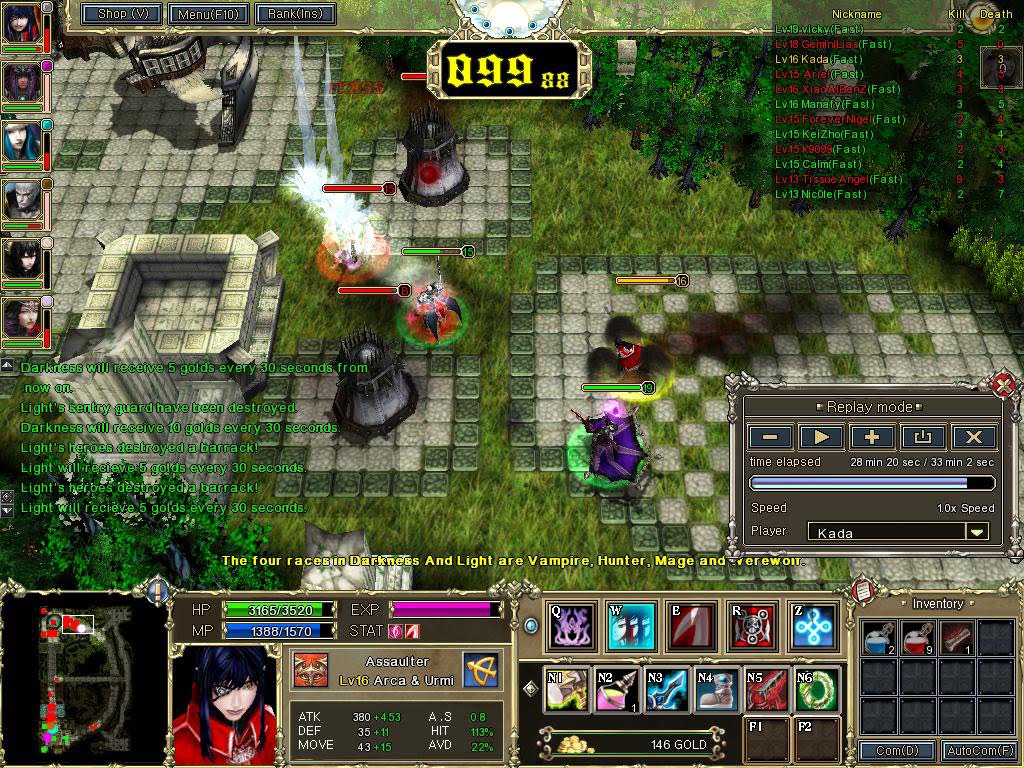
Darkness and Light SEA - Update Bypass & Watch Replays

22 January 2011

Darkness and Light SEA update bypass which allows you to watch your replays.


Yes, this is for Darkness and Light SEA only, not other versions. This is actually not a bypass, it does not bypass XTrap or anything, it just lets you start the DAL Client so that you can watch your replays. I would like to call it a DAL CLIENT STARTER, but I guess many people would search for a "bypass" instead. The XTrap functions are not removed in any way, so the game does a periodic check about every 30 mins with XTrap, and since we don't have it, the game will close/crash. So you have about 30 mins to view your replays.


If you know how to get around XTrap, you can try to reverse engineer it. You can also try to get pass the login screen, both which I am trying to work around now.


All my updates about DAL will also be on ShadowTeamX3's blog. We are also working on a Warcraft III map for DAL, if you're interested, please visit his blog for updates.
http://evostoning.blogspot.com/


How to Bypass DAL Update
Okay, I modified the DALPatch.run and DAL.run files, so all you need to do is to overwrite them in your DAL folder. Be sure to backup the old files, these are just to get the game started, nothing more.


Step 1
If DAL Client is not installed in your computer, please visit ShadowTeamX3's blog to see the article which has the download links there. You can download the DAL SEA client there.
http://evostoning.blogspot.com/2011/01/darkness-and-light-sea-dal-update.html


Step 2
Download DAL Client Bypass Patch from ShadowTeamX3's blog post.
http://evostoning.blogspot.com/2011/01/darkness-and-light-sea-dal-update.html


Step 3
Unzip DALSEA Patch.rar and extract DAL.run and DALPatch.run in DAL SEA folder. Click 'yes' to replace the files. Be sure to backup the old files too!


Step 4
Launch DAL.exe, the updater should 'bypass' the update. For Windows Vista/7 users, run DAL.exe as administrator.
DAL will think it has already been patched, so it will say Patch Completed. Click 'Start' to launch the game.


Step 5
XTrap Error should pop up. Click 'Start' again. (Do not click 'OK' as it will terminate the program.)

NOTE: If you're using Windows Vista/7, especially 64-bit users, you might get an error saying that DAL.run is not associated with a program, or something. If so, please run it in compability mode for Windows XP, then run as Administrator.


Step 6
DAL should launch now. Congratulations, you've successfully entered the login page. Click 'Replay' to watch your saved replays. Make sure your replay file is placed in DAL\REPLAY folder in My Documents.


Step 7
Enjoy your replay!


Yes, I have obtained permission from ShadowTeamX3 A.K.A NuevoEvo to put the images here. He also has my permission to put my work on his blog. We work together. Most DAL updates will be on his blog. My work will be showed here, and then linked to his blog. Enjoy!


Love,
Nicholas.

Are Video Games Useless?

14 November 2010

Do video games bring any benefits at all or they just make you addicted and regret years after that you've wasted your time?

Right, today's my birthday and it's a Sunday, so there are two notices before I start on this post.


1. No WNx comic strip today because I'm busy on my animation project.
2. Yes, it's my birthday! :D


Now take a look at this video. It says about how video games affected this person's life and how much time he has wasted. He regrets and warns people not to play video games because you'll eventually get addicted and so on.


FIRST THING'S FIRST
Okay, the first thing I would like to say...which is not-related to the video is this.

There are PLENTY of people giving inspiration nowadays and I'm surprised that they could come up with dumb and wrong inspirations that people believe to be good and correct. Take for example, this quote from a talk in INTI University Nilai, in Malaysia where Bill Clinton gave a talk.


"You cannot focus on what you can't do, but you focus on what you can do and find people to do what you can't do."
- William J. "Bill" Clinton.


USE LOGIC AND THINK FOR YOURSELF
1.
What do you mean by something that you cannot do? Do you even need to go out there and find people that can do what you can't do? Just learn it and do it yourself!

2. If you can find people to do things for you, you probably need to pay them. There is no free lunch. If you're not capable yourself, just do something simpler or learn how to do it. Leading a team of people who are 5x more knowledgable than you is not going to get you anywhere and you'll just get overwhelmed. You first need to be capable and intelligent in what you do, then become a wise and strong leader, then you lead people.

3. Someone posted this on Facebook and I don't know what in the world is so inspirational about this. There was even this comment, "so inspiring" wtf...?


NOW MY OPINIONS ABOUT THE VIDEO
Back on topic.

Video games waste a hell lot of our time? This is relative and to be honest it is a swooping statement. If you read tons of stories like Harry Potter and the sort as much as a gaming addict plays video games, you are also wasting your time as much as a gaming addict does.

The benefits of reading are just about the same of the benefits of video games. But in video games, I bet you get more of it than reading. Such benefits are:

1. Strategic planning, anticipating changes, solving puzzles, do logical reasoning and so much more especially in strategy, puzzle and simulation games.


2. Socialize. Games unite the world through online gaming and gaming competitions, people share the same interest and stuff. To say that a video game makes you less sociable because you stay at home all day in front of the computer is the same as how bookworms sit at home all day and read books. What's the difference? In games, you get to socialize online and you get to compete with others, that's the difference.


It is true that games unite people. This is a picture of me and a bunch of other gamers from other states/country in a gathering. We were going to play paintball.


3. Games increase your creativity that lets you solve problems in various ways. Look at Touhou. The fans create videos and music that are so awesome and imaginative, they could've made a hell lot of money if it were original creations.


IOSYS is a circle that creates high quality (THE BEST) fan-made music and flash animations based on the Touhou game series.


4. Teamwork, leadership and co-ordination. I got this out of L4D and COD4, and I could watch the actions of my teammates to sync with them without any sort of communication. I was able to use this skill in reality and it's like learning psychology.


5. Hand-eye coordination that helps you do everything with ease. Games like COD4 actually improve your vision and reflexes where you actually strain your eyes to see people blending with the backgrounds and other entities. In COD4, they even had snipers with ghille suits and they're hiding in the grass. Serious gamers could spot them and take them out...while I couldn't. Now that's improving vision...even the slightest colour difference could be seen and your field of vision (you could interpret things even if it is at the corner of your eye) is increased.


COD4's Ghille Suits look exactly like grass.


These are just the few benefits I thought of on my mind while writing this. Do you get these benefits in reading? No! Games also portray their story and some games even give you a bunch of stuff to read as if you're reading a novel. Games interact with players so much more and give really healthy benefits.

Why put the blame on video games?


Rinnosuke is a character in Touhou, not much is said/shown about him. The fans called him MANnosuke and gave him MANLY skills. That's just random... and most importantly..FUNNY & CREATIVE! This comic strip is drawn by Wong (not me).


WHO IS TO BE BLAMED
The one to be blamed is the player who lacks self-control and self-discipline. If you're a parent, just get games that a Teen rated or games for kids if your children are still young. Play in moderation. Too much of anything will bring negative effects, DUH.


CONCLUSION
So look, don't say video games are bad. They're only bad if you play too much with no self-control and sense of time. Almost everything's like that. I'm a gamer and I benefit from gaming a lot. I gained confidence and logic skills to sort out things in my life. I am great in my studies, I accept criticism, I do not get angry easily (after all, online gamers like to talk crap and scold you over the simplest things, but in the end you're having fun) and I could manage time properly (the Sims helped me in my time management). And yeah, I'm not friggin' obese. My BMI's normal and I spend my time bboying as well.

I am relaxed and I feel great as ever. Without games, I couldn't have gotten so many benefits. If you do not play excessively, you get a bunch of benefits, so why not?


Love,
Nicholas.

New Addiction - PoFV

05 October 2010

Alright, recently I've played this game from the Touhou Project and it is really addictive IMO.


This game has been around since 2005, but yeah, it's still pretty awesome.


What is Touhou Project?
It is a series of games created by only one guy called ZUN from Team Shanghai Alice (which the team consists of only him) and most of the games are of the vertical shooter or "bullet hell shooter" genre.

Today, I'll be talking about the 9th Touhou Project, Phantasmagoria of Flower View or PoFV, because it is competitive and has multiplayer.

(You can download Touhou games here!)


Main Menu


Phantasmagoria of Flower View
Basically in the story, something happens in every 60 years, and this time, there seems to be a lot of flowers blooming! So it's called Phantasmagoria of Flower View and you get to use a bunch of characters to go through the story.


PoFV's gameplay is a little different. It has 2 side-by-side screens in which you play normally by shooting stuff that comes to you and prevent yourself from dying. The person who dies first will lose. In the process, you can destroy special stuff to create attacks for your opponents and even cast spells to send bullets to your opponents. So it's basically sort of a versus-like game.


The HUD and what it means. Number 9 is Cirno, Ice Fairy...the japanese letters read, "Baka"


So that's basically the general layout of the game. Two screens and a bunch of HUD. The game has Story Mode, which allows you to select characters to go through a story. It also has Match Mode which allows you to fight with other players, AI or even network play. Lastly, it has Extra Mode for players who want to try very challenging levels.


Opponent, Reisen casting a Level 4 spell on me, Tewi.


Spells can be casted by holding down the Shoot (Z) button until it charges up. How much you can charge depends on how much you have in the spell bar at the bottom. A Level 1 Spell will release normal attacks and doesn't deplete. Level 2 / 3 Spells clear up some bullets in your screen and creates specific attacks on your opponent's. Lastly, a Level 4 Spell (Boss Spell) will summon a copy of your character to release a huge and deadly series of bullets in unpredictable ways.


The laser beam on the left side is one of the attacks my opponent, Marisa sent to me, Reimu. The right side has my character in it spamming bullets because I casted a Boss Spell (Level 4 Spell)


Destroying certain entities in your screen also sends attacks to your opponent. So, this game is all about dodging hundreds and thousands of bullets while trying to create hundreds and thousands of bullets for your opponent to dodge till he/she dies. It is quite competitive and fun especially when you get to cast spells and screw up your opponents. It is also quite challenging.


Dodge this...


Yes, I wasn't joking about the "hundreds and thousands of bullets" part. This is one game where Easy Mode can kick your ass. It provides fast action and really helps on your hand-eye coordination too. Simple to play, yet very challenging and fun. I recommend it! It's addictive too...try playing it with your friends!


How To Play?
Detailed information on Controls are already stated somewhere, so there's no point stating it here again. I'll just give you links to see them.


http://www.giantbomb.com/touhou-09-phantasmagoria-of-flower-view/61-21289/
http://touhou.wikia.com/wiki/Phantasmagoria_of_Flower_View:_Gameplay


Videos
Just some videos to show you how it is like. You'll feel the adrenaline rush...first one's a 2-Player just-for-fun game and the second one's some serious netplay.


Love,
Nicholas.

L4D: High Point [v0.91]

30 September 2010

Updated version of my L4D Map is out!


Alright! New version of my L4D: High Point map has just been released today. You can get it at the all new Downloads section in the blog!


Here's the changelog.
v0.91
- Fixed Boomer's Unlimited Horde
- Fixed Pill's Magical Heal bug.
- Added "/blood (on/off)" for Infected bloody death.
- Added "/noisymusic" to turn off the damn horde music. Use ONLY WHEN you face this problem where the music won't stop.


Love,
Nicholas.

Savage 2: A Tortured Soul

19 July 2010

Introducing a very unique game for those are still undecided on what kinda games to play!


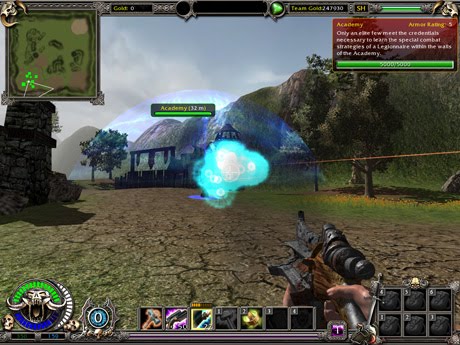
Alright. Introducing Savage 2! A very unique FREE TO PLAY game that features RTS, FPS and RPG style of gameplay. The game is highly dependent on SKILLS and STRATEGY of the player than items and stuff like that. It is the first and probably the only game to implement RTS and FPS style into one, except the previous Savage 1 of course.


Fast-paced action and cunning strategy development awaits you!


Overview
The game consists of two teams, the Legion of Man and the Horde of Beasts. In every game, these two teams will oppose each other and fight until their main base is destroyed. Savage 2 is a online-based multiplayer game, but it also has Practice mode just to solo a bit. In an average game, one player plays as the commander, and the rest of the team plays as the units.


Real Time Strategy, Being the Commander
Just like the previous Savage, Savage 2 requires a Commander to build buildings, gather resources, research and so on. In Savage 2, the commander also has the ability to use buffs or debuffs to strengthen his overall leadership ability. The strategy in which the commander uses, builds and orders other players around is the key to winning the game.


The commander can issue orders to other players to defend, harvest, build, attack, guard and so on. The commander is also the most important person in the game.


So...
Planning and Strategy - CHECK!
Placement and Infrastructure - CHECK!
Ordering Units Around - CHECK!
Research, Tier and Tech - CHECK!
Fog of War - CHECK!

Definitely a RTS.


First Person Shooter, Being the Heroes.
While your wise commander would be busy planning the infrastructure and developing his strategy to move units (the little pawn pieces) around, these units make up the army and are controlled by the players itself. Players play as these Heroes and are not controlled by the commander, they can only be ordered around.


The success of one team does not only depends on perfect planning of the commander, but also the skills and the ability of the player to devastate the opposing force with well planned attacks and strikes. The player goes into FPS while holding a gun-type weapon, and goes into TPS while using melee weapons.


The melee combat is very impressive and you have total control of your actions. You time your attacks right by doing fast attacks or even jump attacks which can break the guard of an enemy. You will also need to block attacks and dodge attacks, then perform your own way of countering the enemy's attack.


So...
Variety of Guns and Spells - CHECK!
Targeting System and Crosshair - CHECK!
WASD and Sprinting Around - CHECK!
Killing Sprees and Fragging - CHECK!
Crouching Behind Cover - CHECK!
Teamwork - CHECK!


Definitely a FPS.


Role Playing Game, Classes and Skills.
As a Hero in the game, you can level up within the game and build up your own attributes to suit your style of play. As the commander builds buildings which allows more units to be created, the player can choose more classes. Every class in the game is relatively useful in combat, but players can take on many roles such as being a healer, buffer, damage dealer and so on.


The skills in which a player can use depends on their class and the tech developed by the commander. When the commander researches and builds certain buildings, they unlock skills and weapons in which a player can use. Yeah, you can also buy and use items.


Oh, and in Savage 2, you are also put into Squads. Each squad is like a small party, and has a leader to perform orders as well. Being around each other will give extra boosts, promoting teamplay. There are also Officers which help out the commander and they all have extra boosts and abilities.


So...
Class System - CHECK!
Spell System - CHECK!
Leveling - CHECK!
Attributes - CHECK!
Party System (Squads) - CHECK!


Definitely an RPG.


Other Fantastic Features
1.
Hellbourne
In RPGs like Final Fantasy...you can summon Aeons. But here, you summon Hellbournes! By killing other enemies, you gain Soul Points in which you can use to summon these powerful creatures. The creatures assist in battles and provide lots of damage.


2. Creeps
Some maps, you can find creatures to kill as well, just like creeps in any strategy game.


3. Gadgets and Summonables
Some classes can deploy gadgets like traps and turrets. Some can also summon creatures to fight on their behalf. It all sums up to be a very powerful FPS + RPG gameplay element.


4. Supports Other OS
This game is native to Linux! Not only it runs in Windows, but also Linux and Mac OSX. How cool is that? You don't have to worry about compatibility issues.


Try it out!


http://www.savage2.com/en/download.php

How to Play CODMW2 Multiplayer Online?

16 June 2010

Garena doesn't work. How?


Been trying too hard for so long just to get Call of Duty: Modern Warfare 2 to go online on multiplayer but couldn't? Well there's one way that Unnamezz showed and he got it working successfully. Here's the steps on how he did it. Also, thanks to Leon who pointed out the post by Unnamezz.


Steps
1. Go to this link.

2. Then, download 'FreshInstall' if you have downloaded MW2 from Internet.

3. Else, if you downloaded MW2 from Steam / Original Copy, download 'Update'.

4. After your download is complete, extract all the files into your MW2 folder.

5. Replace and overwrite all.

6. Then, run alterIWnet_configure.exe and type your IGN.

7. Click on the MW2 Multiplayer icon and click Play, then click on Find Game.

8. Choose the gamemode you want to play and wait.

9. You may need to wait for quite some time, do not rush.

10. Just wait...

11. Be patience, the games will appear... continue waiting.

12. Wait just a little while more.

13. Volia! Games appear and you can play MW2 Multiplayer online. Enjoy!!


Please use this guide at your own risk, nobody is responsible for what you're doing to your MW2 if you tried it and it does not work. This guide is only for the desparate and people who bought the game but could not find any other ways of playing their game online.

How to Play Starcraft II Beta Offline

06 April 2010

A short guide to playing Starcraft II Beta in Offline mode with AI.


Playing Starcraft II Beta without BattleNet is possible. Not only that, there is also an AI patch which allows you to play against computer AI.


Short Note
Tested with Windows XP and works perfectly.
For Windows Vista and Windows 7, try running the program as admin if you encounter any problems when running the program. (Right-click and click 'Run As Administrator')


Minimum System Requirements
- Windows XP SP3 / Vista SP1 / Windows 7
- 2.2 Ghz Pentium 4 or Equivalent AMD Athlon Processor
- 1 GB System RAM / 1.5 GB for Windows Vista and Windows 7
- 128 MB NVidia GeForce 6600 GT / ATI Radeon 9800 PRO Video Card
- 1024x768 Minimum Display Resolution
- 4 GB Hard Disk Space
- Broadband Connection


What You Need
1.
Starcraft II Beta Client


2. Starcraft2 ALLin1 v5.7.0 (Get the latest version if it's out!)


3. A Starcraft II Map (You can find them here.)


How To Install?
1.
Download Starcraft II Beta and Starcraft2 ALLin1 v5.7.0.
Note that the Starcraft II Beta Client is downloaded through a torrent file. If you dislike P2P because it's slow or just don't trust it, find a direct download.


2. Install Starcraft II Beta.


3. Install Starcraft2 ALLin1.
Just follow the instructions on the installer.
Example: C:\Program Files\StarCraft II Beta\SC2ALLin1


4. Regional and Language Options
In the Control Panel, go to Regional and Language Options. Under the 'Advanced' tab, make sure the Language for Non-Unicode Programs is set to English (United States).


5. Place a Starcraft II Map in the Maps folder.
Example: C:\Documents and Settings\Your Name\My Documents\StarCraft II Beta\Maps


6. Run SC2ALLin1 on your desktop shortcut.
The launcher allow you to select a map, customize factions and opponents. After you done with that, click 'Launch' to start the game.


Troubleshooting
Error appear while opening SC2ALLin1.exe "The application failed to initialize properly. (0xc0000135)"

Solution: Make sure Microsoft .NET Framework Version 2.0 is installed in your computer. If it is not, download it here.


Error appear while opening SC2ALLin1.exe "An error occurred when creating the form. See Exception.InnerException for details."
"The error is: Font 'Verdana' does not support style 'Regular'"


Solution: Go to Control Panel\Fonts. Make sure the 'Verdana' Font is installed in your computer. Download font here.


Starcraft II Loading Screen appears grey. / Starcraft II closes immediately after loading finishes.

Solution: Make sure Language for Non-Unicode programs is set to English (United States). Refer to Step 4.


Lastly I hope this short guide will help and that's it, enjoy your game.
Thanks to Evo for the guide.


Love,
Nicholas.